Getting video onto your website:
Web video demystified
by Michael Bluejay • Feb. 2004 • Updated October 2010
This
article explains about video & file formats, and helps you choose
one to use on your website. If you're already familiar with this
then you can go straight to the page with the
actual HTML code to add video to site. Otherwise,
keep reading for the basics.
Web video can be confusing, but we're going to make it easy. The key to understanding web video is realizing that there are actually three different parts:
- The file format that holds the video, like .mp4,
.flv, .f4v, .ogv, or .avi
- The video format (aka codec), like H.264, MPEG-4,
or Theora
- The player that makes it available to your site
visitors, such as the Adobe Flash Plugin, or the new
<video></video> tag.
- There is no one format that works on everything:
- Flash works on most browsers, but not on the iPhone or
the iPad. And starting in Oct. 2010, it's not preinstalled on
Macs.
- The <video> tag works on the iPhone/iPad/Macs, but not in Windows Internet Explorer (not even v.8).
- The
<video> tag works in Safari, Chrome, and Firefox, but Firefox
doesn't support .mp4 with that tag, only the more obscure .ogv.
- So you have a few choices:
- Use a Flash player, and accept that iPhone, iPad, and newer Mac users can't see your video1. Or...
- Use the <video> tag with an .mp4 file format, and accept that IE and Firefox users can't see your video. Or...
- Use the <video> tag and feed it both an
.ogv file (for Firefox) and an .mp4 file (for everything else),
and accept that IE users can't see your video. Or...
- Wrap the <object> tag for Flash video inside the <video> tag, and make both an .mp4 and an .ogv file available on your server. This will work with damn near everything, since the browser in question will use whatever it can support. The code for this appears below. Obviously this is the most-compatible solution, but it does require a little more code, and you can't get away with having just one video file. You'll have to make both an .mp4 version and an .ogv version.
| Web browser video compatibility |
||||||
| IE8 |
Safari |
Safari on Macs, after Oct. 2010 |
Firefox |
Chrome |
iPad/iPhone |
|
| Flash |
✔ |
✔ |
not
preinstalled |
✔ |
✔ |
|
| <video> w/.mp4 |
✔ |
✔ | ✔ |
✔ |
||
| <video> w/.ogv |
✔ |
✔ | ||||
| Combination
code |
✔ |
✔ |
✔ | ✔ |
✔ |
✔ |
|
|
||||||
File Formats vs. Video Formats
One of the biggest sources of confusion about video is not realizing that the file format is completely different from the video format. So you're always dealing with two formats, not one.
Examples of file formats are .mp4, .flv, f4v, .ogv, or .avi. File formats are often called container formats because they're containers for the actual video. By contrast, the video format is the flavor of compression that's used on the video. This is often called a codec. A picture is worth a thouand words, so let's have a look:
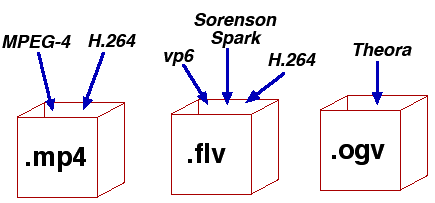
Your movie.MP4 file is a container that can hold video encoded as either MPEG-4 or H.264.
A movie.FLV (Flash) file could also hold H.264 video, or it could hold video encoded with vp6 or Sorenson Spark. But it can't hold MPEG-4 video.
A movie.OGV file is primarily for Theora and other even more obscure formats. It can't hold MPEG-4 or H.264, at least not easily. But there's a chance it will become a standard in the next few years, so I'm keeping an eye on it.
Other container formats include .mov (QuickTime), .avi, .asf, and .mpg. The .mpg file format can hold either MPEG-1 or MPEG-2 compressed video. DVD's are encoded in MPEG-2, by the way.
So every time you convert a video, you're going to be choosing two distinct things: The file format, and the compression scheme (the video format).
Did you notice that the picture has both "MPEG-4" and ".mp4"? Maybe now the distinction is clearer. Let's continue to de-mystify MPEG-4 for good.
.mp4 vs. MPEG-4
The confusing thing about "MPEG-4" is that it means about thirty different things. The three most popular things are:
So yes, H.264 is actually a flavor of MPEG-4. Fortunately, if someone means H.264 they'll say "H.264" and not MPEG-4.
- The .mp4 container format that can hold MPEG-4- and H.264-encoded video. (aka "MPEG-4 Part 14")
- The MPEG-4 video format (aka "codec"), that can be used in .mp4 files. (aka "MPEG-4 Part 12)
- The H.264 video format (aka "codec"), that can be used in either .mp4 or .flv files. (aka "MPEG-4 Part 10, AVC/H.264)
However, you're not so safe when it comes to .mp4. Many people don't understand the difference between the .mp4 file format and the MPEG-4 video format, and they may (wrongly) use these terms interchangeably. There's nothing you can do about this, except to understand the difference for yourself. And that difference is:
- .mp4 is a file format, which can hold either MPEG-4 or H.264 video, and
- MPEG-4 can mean any of the three things above, but it usually refers to the video format that can go into .mp4 files.
H.264 vs. MPEG-4
If you're making an .mp4 file, you can choose either H.264 or MPEG-4 for the video compression. Which is better?
H.264 is better, no question. At a given filesize, H.264 gives a much better picture. Or at a given level of quality, H.264 gives a smaller filesize. By comparison, you could get near-DVD quality at 1/4 to 1/3 the size. (Of course, you wouldn't be putting anything that big on the web, but you get the point.) H.264 is the overwhelming choice for .mp4 videos.
H.264 takes a little longer to encode than MPEG-4, but that's usually not a problem. And in theory H.264 could run down the battery on portable devices faster than MPEG-4 since it's more processor-intensive, but in reality the higher processor use is combined with a smaller file size, so these likely cancel each other out, so that H.264 doesn't come with a battery power penalty.
How to convert your video
.mp4Whatever hardware you used to create your video, probably came with software to convert it to an .mp4 file using H.264 compression (or using MPEG-4 compression, if you prefer). If it's already an .mp4 file, you'll still need to convert it if it uses MPEG-4 compression and you want the more efficient H.264. Even if the format is already perfect, you'll still need to convert it to a smaller version for use on the web..ogv
If your video hardware didn't come with conversion software, free conversion software for Mac OS includes HandBrake, MPEG Streamclip, and ffmpegX. I don't do Windows, so for that I'll refer you to recommendations by Life Hacker, PC Magazine, and Top Ten Reviews.
Ogg is new so there's not a lot yet that will convert it. But one way is all you need, right? So to convert videos to the .ogg/.ogv format, install the Firefogg extension into your Firefox browser. (If you don't have Firefox, you'll need to get it.) It's an easy install, just a few clicks. From there, when you go te Firefogg.org you'll see an option to choose videos from your hard drive to convert. The conversion happens on your local hard drive, nothing gets uploaded anywhere.Whether you're converting to .mp4 or .ogv, the most important setting is the bitrate. That's our next topic.
Understanding bitrate
| Bitrate and File size |
||
| Bitrate |
Filesize |
Application |
| 250 kbps |
1.9 Mb/minute |
YouTube original format |
| 500 kbps |
3.8 Mb/minute |
YouTube HQ |
| 768 kbps |
5.9 Mb/minute |
iPod maximum |
| 1664 kbps |
15.3 Mb/minute |
TV show I downloaded from the iTunes store |
| 2000 kbps |
15.4 Mb/minute |
YouTube HD |
|
|
||
Your original video file is huge. To put it on the web you first need to compress it. Your video conversion software will likely ask you what bitrate you want to use. (Or to keep things simple, it might present choices like "Low", "Medium", and "High".) The higher the bitrate, the more information will go into the converted file, and the higher the video quality you'll get.
Of course, the higher the bitrate, the more space the file will take up. The table at right shows some common bitrates and how big the video files are. A quick rule of thumb is to divide the bitrate by 130 to get the megabytes-per-minute.
You might notice that there's an anomaly in the table for the 1664 kbps TV show at 15.3 Mb/minute, which works out to 109x the Mb/min., not 130x. My best guess here is that my video player isn't reporting the bitrate accurately for some reason, at that the true bitrate is actually closer to 2000 kbps.
You also might wonder why I haven't said anything about file format or video format. That's because it doesn't matter. If you encode some video at 768 kbps, your resulting file is going to be around 5.9 Mb per minute no matter what format you use. That's because bitrate is a measure of how much information you're using. By specifying a bitrate, you're basically telling your software how big you want the file to be.
Of course, different formats are more efficient than others. So a 4Mb .mpg/MPEG-2 file might look like crap while the same 4Mb video in .mp4/H.264 format could look fantastic. For a given filesize, H.264 provides much better quality. Or for a given level of quality, the file using H.264 will be much smaller.
Two-pass encoding
Most video converters will give you an option for "Two-Pass Encoding". This doesn't make your filesize any smaller, but it does make the quality better, so it's a good idea to check this option. It does mean that your encoding will take a bit longer, of course.
The HTML to get the video onto your
website
In an ideal world, you could simply use this:
<video src="mymovie.mp4" width="320" height="240" controls=""></video>In fact, that will work fine in Safari, Chrome, and the iPad.
But it won't work in Internet Explorer (8) or Firefox (3.5). To get compatibility with everything, it's a lot trickier. So see my separate article about the actual code to get video onto your website.
What is Streaming?
For most purposes, streaming is unnecessary and you don't have to worry about it. In the olden days of the web, an entire video file had to be downloaded before it would start playing. That was kind of annoying, of course. So some programmers came up with streaming, which has the video player simultaneously play the video as it gets the data. But it didn't take too long for other programmers to figure out they could do "fake streaming" (aka "progressive download"), where the video starts playing as soon as enough of it has been downloaded that the user can enjoy continuous playback. All modern video players employ fake streaming, so for the most part, streaming is no longer necessary.If you do want to go the streaming route, you have to indicate that the video file is to be streamed when you export it from your video software (look for a checkbox to that effect), and you have to use a special streaming server. Dreamhost offers streaming servers on even their cheapest ($9/mo.) webhosting plan. But me, I've never streamed my video because I see no advantage in doing so.
My other web video articles
The code to get your video online. The actual HTML code you need to use.
Getting video onto your site with YouTube. Includes the recommended specs that YouTube doesn't tell you.
Contacting me
Please don't send me your questions, I can't answer them. If I knew the answer it would be on this web page already. In any event, I already have several thousand messages in my In Box, and it's impossible (not inconvenient, but impossible) for me to reply to even a fraction of the people who want my help. I just can't function as a free helpdesk to the world. On the other hand, I welcome corrections or other useful information you want to share. But questions sent to me never get answered.